Your first sheet cut list
Build a plywood cut list from start to finish: stock, parts, kerf, results and PDF.
Browse all help topics
This walkthrough cuts a simple base cabinet from 3/4" birch plywood (96" × 48" sheets). The steps are the same in the free sheet optimizer, except that saving needs a paid plan.
1. Start a new sheet cut list
- Step 1: In the top navigation, open Sheets (2D) Cuts and choose New cut.
- Step 2: Click the name at the top (New Sheet Cutlist Name) and type a name, for example
Base cabinet 24in. - Step 3: Optional: click Assign to project to file the cut list under a job.
2. Add your sheet stock
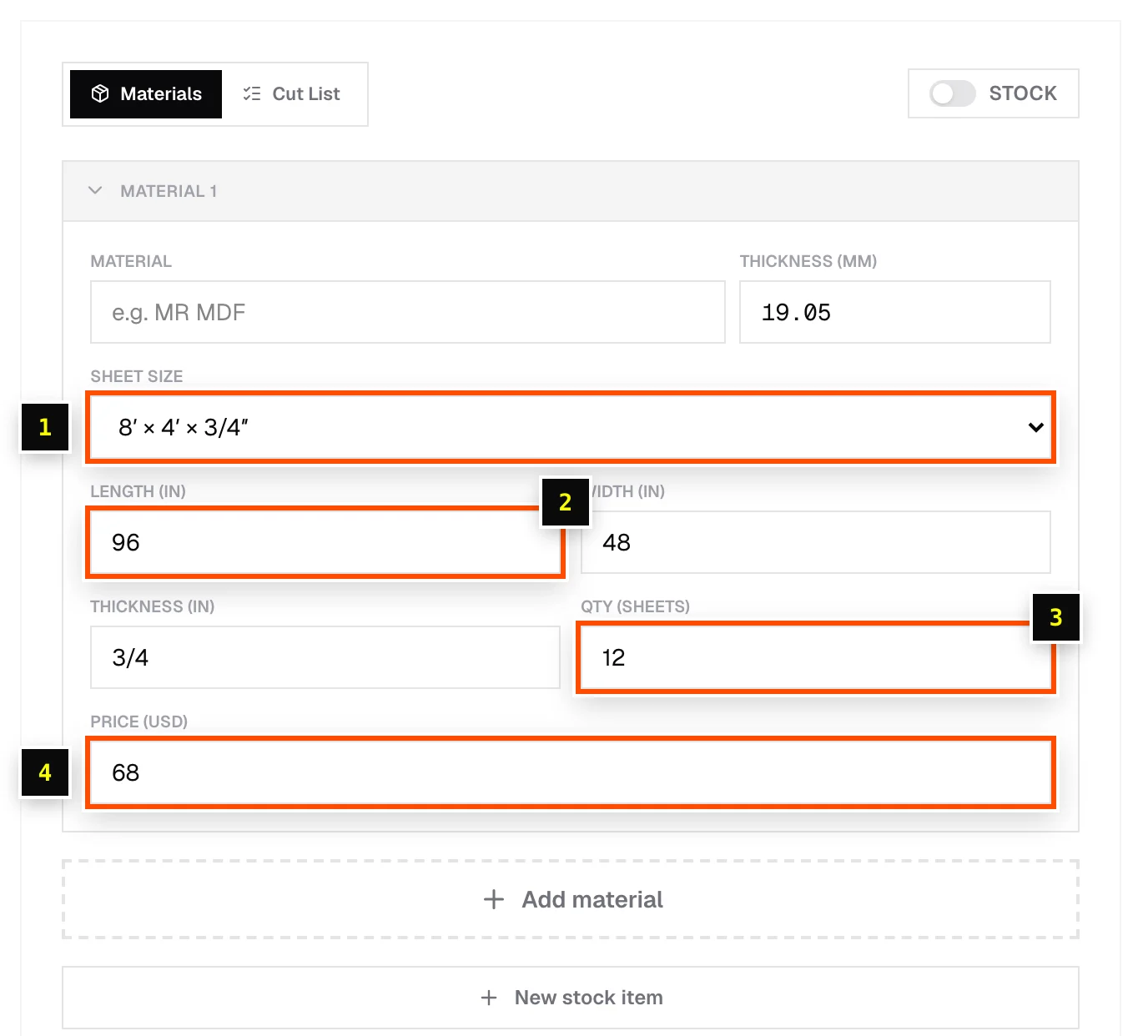
- Step 1: On the Materials tab, switch STOCK off (to type sizes yourself), open Sheet size and pick 8′ × 4′ × 3/4″, or choose Custom.
- Step 2: Check Length
96, Width48, Thickness3/4. - Step 3: Enter Qty (sheets), the number of sheets you have on hand.
- Step 4: Enter Price per sheet, for example
68, to get a cost estimate. - Step 5: Set Sheet grain if the face veneer has a direction. See Grain direction.
3. Enter your parts
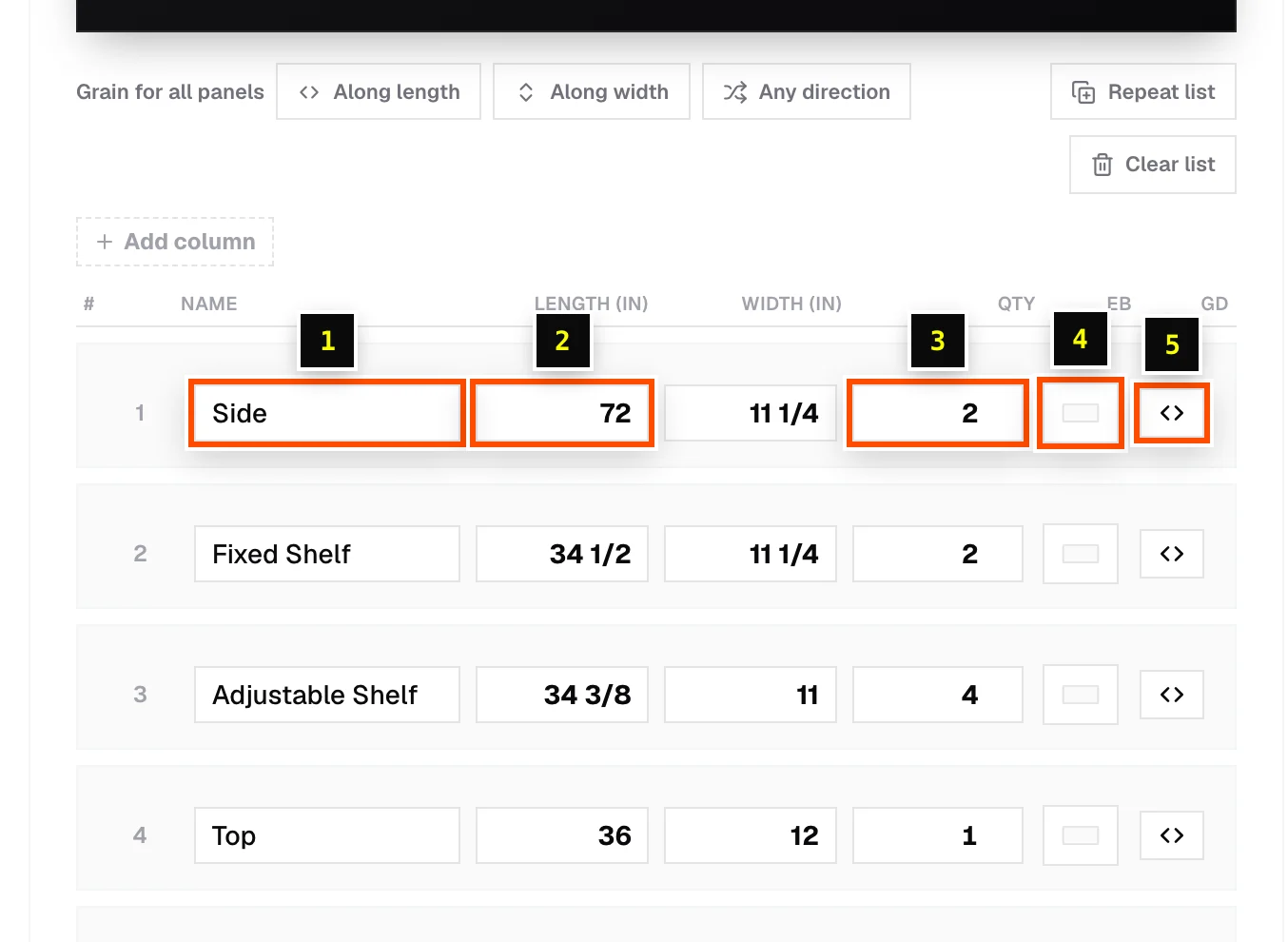
- Step 1: Switch to the Cut List tab.
- Step 2: Fill in the first row: Name
Side, length34 1/2, width23 1/4, Qty2. - Step 3: Click Add panel for the next part:
Bottom22 1/2 × 23 1/4, qty 1;Stretcher22 1/2 × 4, qty 2;Back34 1/2 × 24, qty 1. - Step 4: Set edge banding (EB) and grain (GD) on each part if you need them. See Edge banding.
4. Set the blade kerf
In the toolbar above the editor, enter your saw blade's thickness in Kerf / Blade thickness, for example 1/8. Every cut then removes that much material, so the parts come out at their real size. See Kerf / blade thickness.
5. Read the results
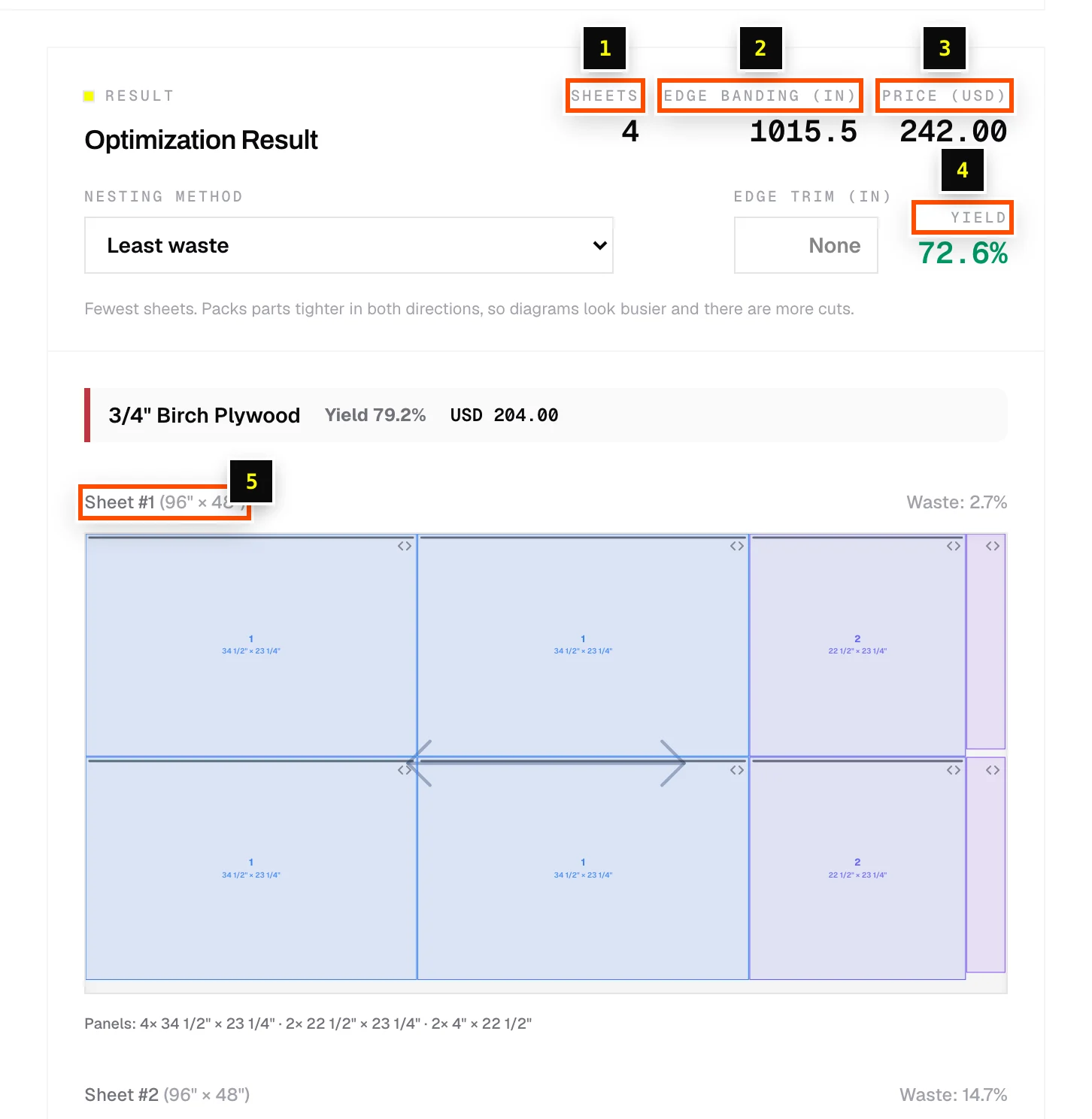
The layout updates as you type. The Optimization Result panel shows how many Sheets you need, your Yield, the cost (if you entered prices), and a diagram for each sheet. See Reading sheet results.
6. Save and export
- Step 1: Click Save at the top. Until you do, the cut list is autosaved as a draft. See Saving, autosave and drafts.
- Step 2: Use the export buttons: PDF for a printable cut sheet, DXF for your CNC, or CSV for a spreadsheet. See PDF export.
Related articles
- Add stock sheetsTell the sheet optimizer what board you're cutting from: size, thickness, quantity, price and grain.
- Enter and edit partsAdd panels, bulk-edit them, multiply a module with Repeat list, and exclude rows from a run.
- Sheet nesting methodsChoose between Easiest to cut, Least waste, Batch cutting and CNC / router layouts.
- Export a PDF cut sheetPrint-ready cutting diagrams and parts tables, with options for mode, orientation and content.
Didn't find what you need?
Email us and tell us which article you were reading.