A tour of the dashboard
What's in the top navigation, the Overview page and the account menu.
Available onProBusinessTeam
Updated September 27, 2026Browse all help topics
Top navigation
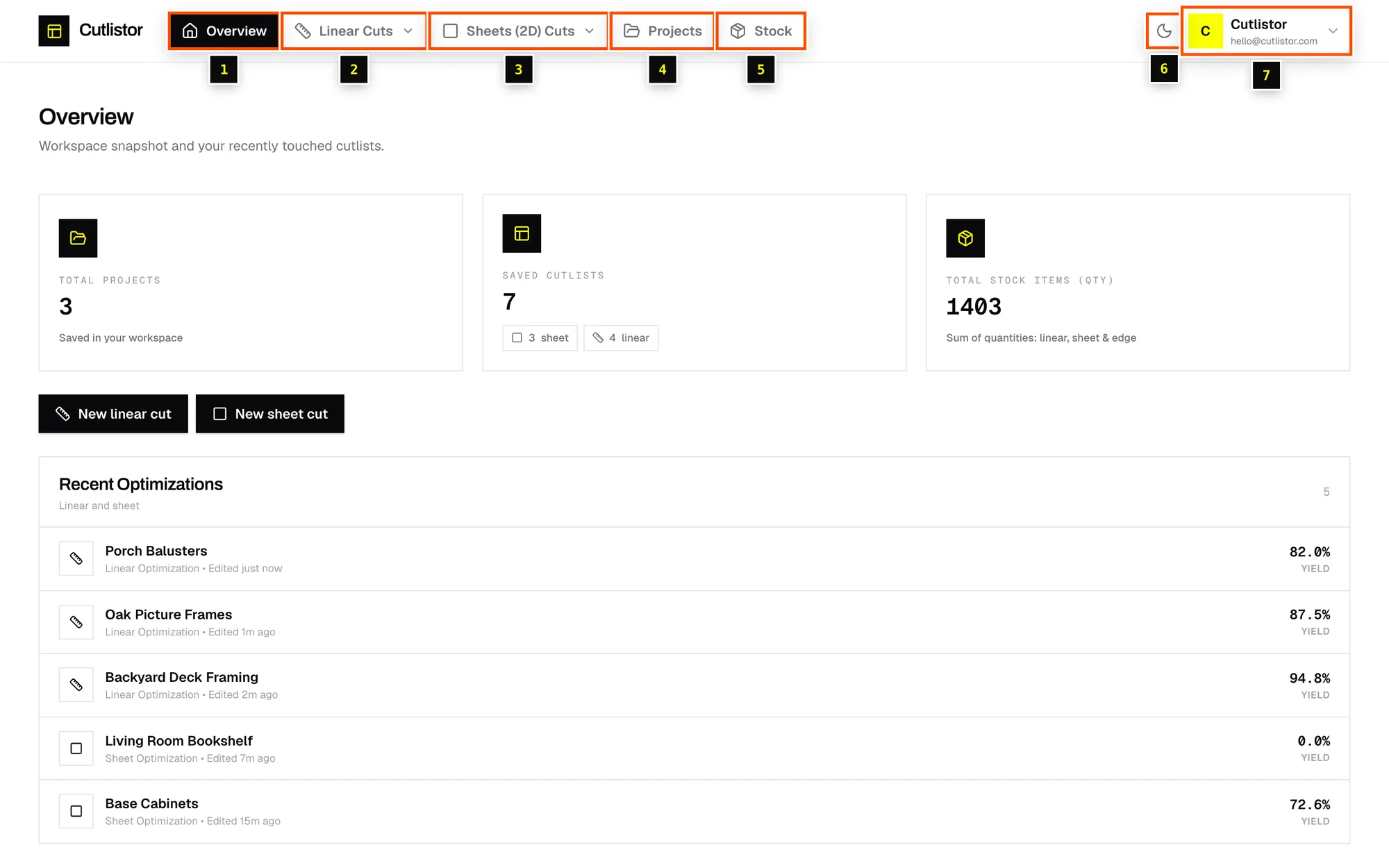
- Step 1: Overview: your home page, with totals and recent work.
- Step 2: Linear Cuts: open the menu for New cuts (start a linear cut list) or All cuts (every saved linear cut list).
- Step 3: Sheets (2D) Cuts: New cut or All cuts for sheet goods.
- Step 4: Projects: group cut lists by job and customer.
- Step 5: Stock: your library of boards, sheets and edge banding.
- Step 6: The sun / moon button switches between light and dark mode.
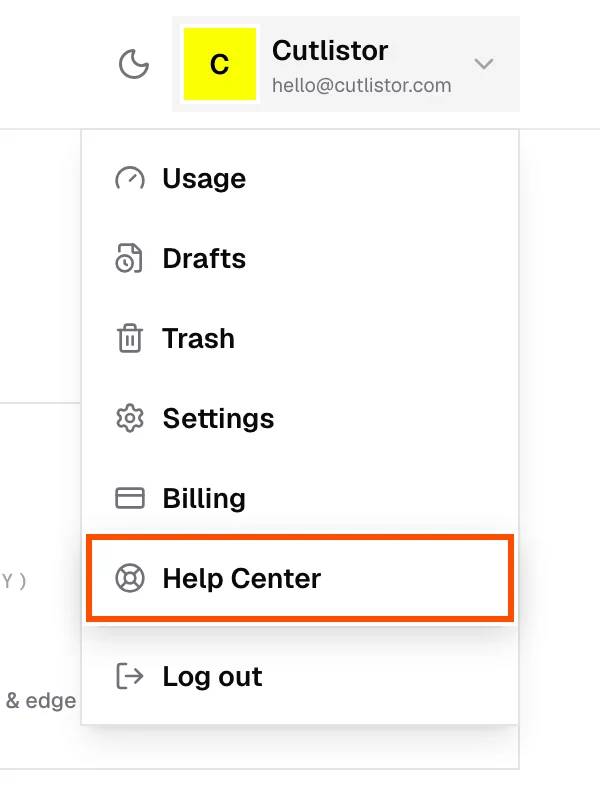
- Step 7: The account menu (your avatar) holds Usage, Drafts, Trash, Settings, Billing, Help Center and Log out.
The Overview page
- Total projects, Saved cutlists (split into sheet and linear) and Total stock items (qty), the sum of every quantity in your stock library.
- New linear cut and New sheet cut buttons.
- Recent Optimizations: the cut lists you touched most recently, with their Yield (how much of the stock ends up as parts). Click one to reopen it.
On a phone or tablet
On small screens the top navigation becomes a bar along the bottom with Home, Linear, Sheets, Projects and More. Everything else is under More. Cutlistor works on phones, but a laptop or desktop is easier for long cut lists.
Related articles
- Your first sheet cut listBuild a plywood cut list from start to finish: stock, parts, kerf, results and PDF.
- Your first linear cut listCut deck framing from 8′ and 12′ boards: stock lengths, parts, kerf and results.
- Saving, autosave and draftsHow cut lists are saved, what a draft is, and how to open or discard drafts.
Didn't find what you need?
Email us and tell us which article you were reading.