Units, fractions and measurement formats
Work in inches and fractions, feet and inches, or metric, and type measurements any way you like.
Updated September 27, 2026
Browse all help topics
Cutlistor stores every measurement precisely, then shows it in the format you choose. You can switch formats at any time without changing your cut lists.
Choose your units
- Step 1: Open the account menu (top right) → Settings.
- Step 2: Under Units, set Units system to Imperial or Metric.
- Step 3: Pick an Entry unit: the unit plain numbers are read in. Imperial offers in and ft. Metric offers mm, cm and m.
- Step 4: Pick a Display format: how measurements are shown in the editor, results and exports. Each option shows a preview.
- Step 5: Click Save settings.
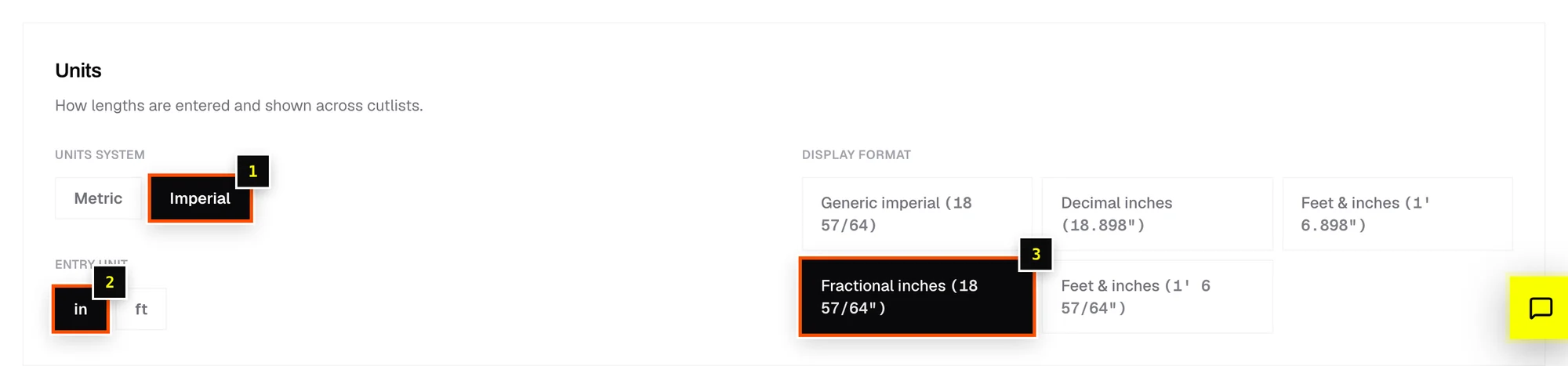
Imperial display formats
| Display format | 23 3/4 inches shows as |
|---|---|
| Generic imperial | 23 3/4 |
| Decimal inches | 23.75" |
| Feet & inches (decimal) | 1' 11.75" |
| Fractional inches | 23 3/4" |
| Feet & inches (fractional) | 1' 11 3/4" |
Fractions are shown down to 1/64" and reduced (8/16 becomes 1/2). Metric formats are Generic metric, mm, cm and m.
Typing measurements: cheat sheet
Every length field (parts, stock, kerf, edge trim) understands all of these, with entry unit in:
| You type | Cutlistor reads |
|---|---|
23 3/4 | 23 3/4" |
23-3/4 | 23 3/4" |
23.75 | 23 3/4" |
1' 11 3/4" | 23 3/4" (feet and inches) |
8' | 96" |
2ft | 24" |
3/4 | 3/4" |
1/8" | 1/8" |
19mm | 19 mm, about 3/4". A unit suffix always wins. |
0.125in | 1/8" |
Where the setting applies
- Units are part of your account, so they follow you to any computer.
- The free tools remember units in your browser instead.
- DXF exports are always in millimeters, whatever you choose here.
Related articles
Didn't find what you need?
Email us and tell us which article you were reading.