Read sheet results
Sheet count, yield, waste, cost, per-material sections, stock warnings and cutting diagrams.
Available onFree toolsProBusinessTeam
Updated September 27, 2026Browse all help topics
The summary
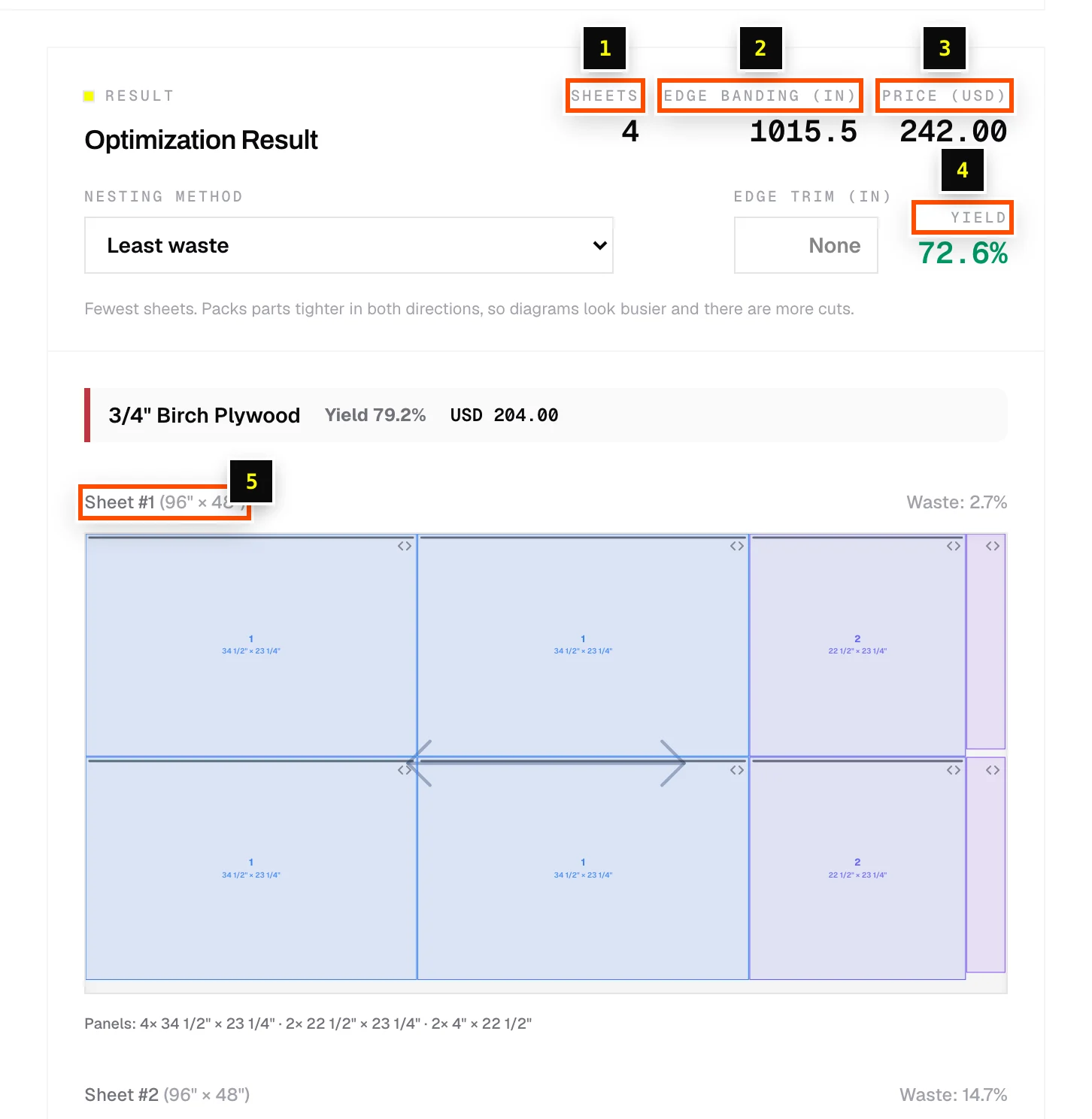
- Step 1: Sheets: how many sheets the layout uses.
- Step 2: Edge banding: total banding length (when the chip is on).
- Step 3: Price: total material cost (when Prices is on).
- Step 4: Yield: the share of sheet area that ends up as parts. Higher is better. 80–90% is typical for cabinet work.
- Step 5: The cutting diagram for each sheet, with its size and waste. With Laminate on, you'll also see Laminate sheets.
Cutting diagrams
- Each Sheet # shows its size, Waste: percentage and a Panels: summary.
- Part names show when the Labels chip is on. Grain arrows show when Grain direction is on.
- Hover a panel to highlight its row in the parts table.
- With grain direction on, click a panel to rotate it 90°.
Not enough stock?
When a material comes from your stock library and the plan needs more than you have, a warning shows, for example In stock: 4. This plan needs 6 sheets, along with how many extra to order.
"The layouts below are from your last successful optimization"
If the latest change can't be optimized (for example a blank size), Cutlistor keeps showing the last good layout under this note. Fix the highlighted value and the results update.
Related articles
- Sheet nesting methodsChoose between Easiest to cut, Least waste, Batch cutting and CNC / router layouts.
- Export a PDF cut sheetPrint-ready cutting diagrams and parts tables, with options for mode, orientation and content.
- Multiple materials and material groupsCut one job from several sheet goods, such as 3/4" plywood carcasses and 1/4" backs, and see each material's results separately.
Didn't find what you need?
Email us and tell us which article you were reading.