Add stock sheets
Tell the sheet optimizer what board you're cutting from: size, thickness, quantity, price and grain.
Available onFree toolsProBusinessTeam
Updated September 27, 2026Browse all help topics
Pick a preset or enter a custom size
- Step 1: In a sheet cut list, open the Materials tab.
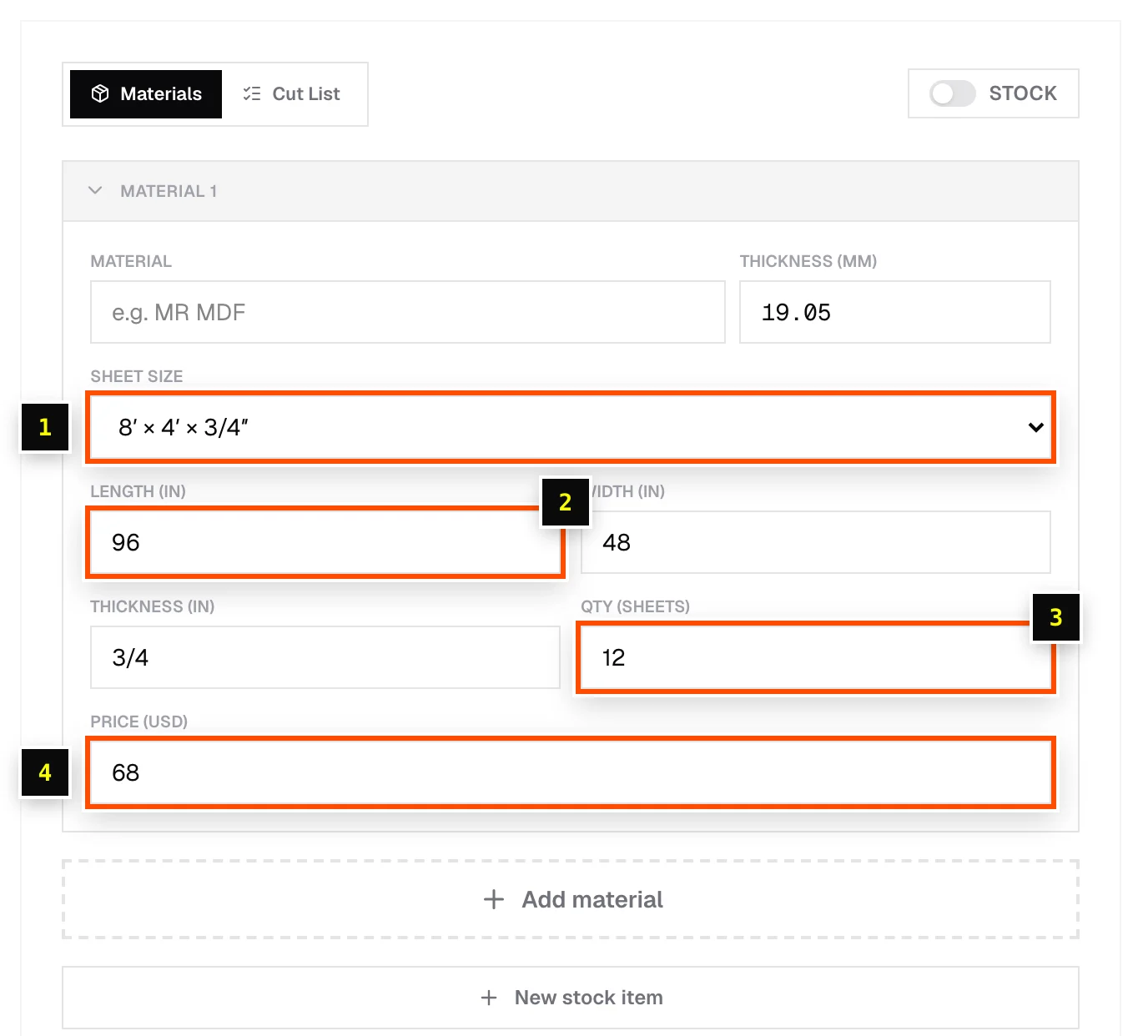
- Step 2: Switch STOCK off if you want to type sizes yourself, then open Sheet size. Presets cover Wood (MDF / Plywood / Particle Board), Laminated Boards (Melamine / MFC), Compact / HPL, Plastic (Acrylic / PVC) and Metal Sheets (Aluminium / Steel). In imperial units you'll see sizes like 8′ × 4′ × 3/4″ and 9′ × 4′ × 3/4″.
- Step 3: Or choose Custom and type your own Length, Width and Thickness.
- Step 4: Enter Qty (sheets), the number of sheets you have.
- Step 5: Enter the Price of one sheet if you want cost estimates. The Prices chip in the toolbar must be on.
- Step 6: If the face has a grain, set Sheet grain. It appears when the Grain direction chip is on. See Grain direction.
Which side is length?
Length is the long side of the sheet (96" on a 4×8 sheet) and Width is the short side (48"). Grain "along length" runs parallel to the long side, as it does on most plywood.
Use sheets from your stock library
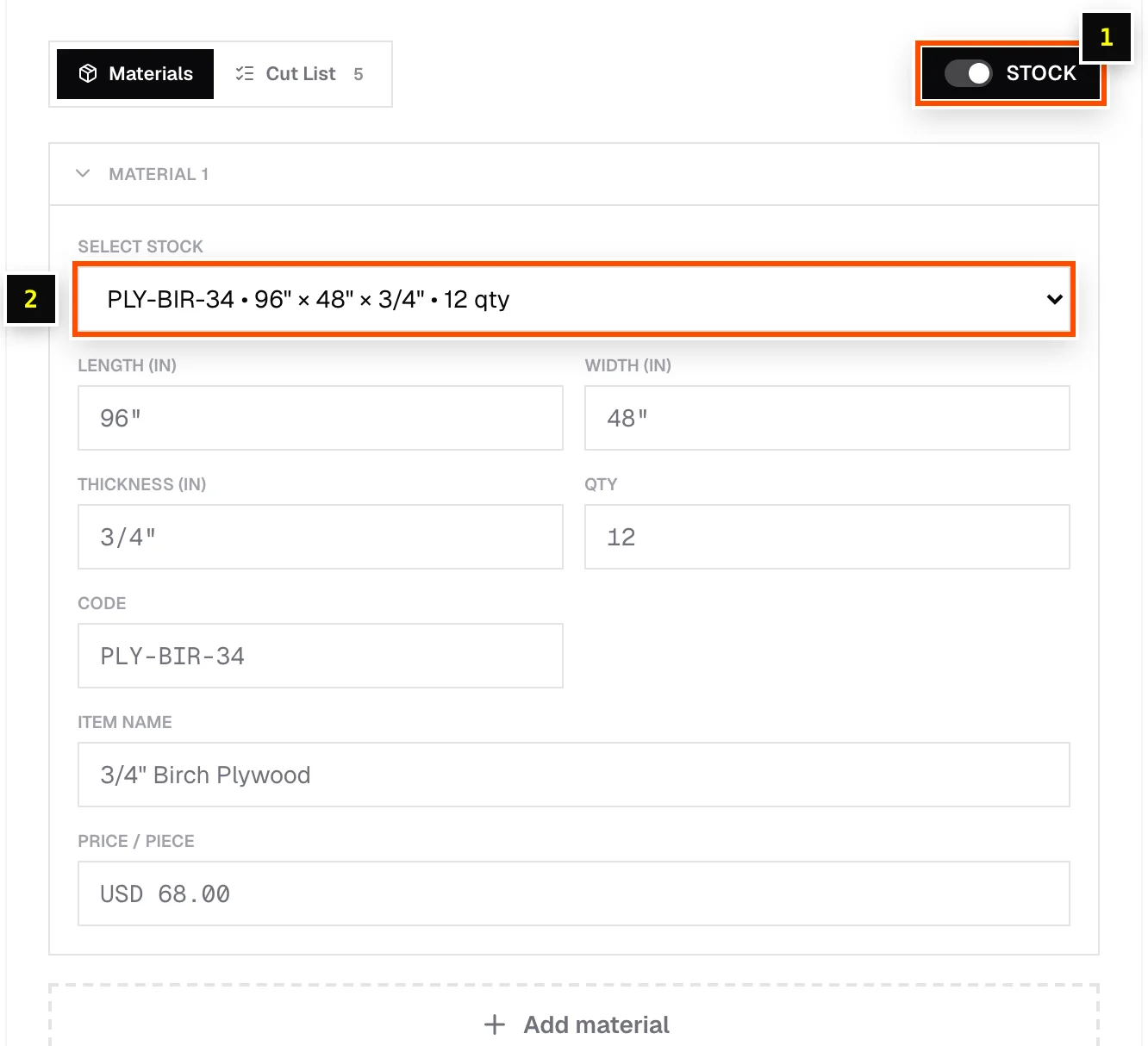
On a paid plan, switch the STOCK toggle on to use sheets saved in your stock library. Choose one from Select stock. Its size, grain, price and stock code are filled in for you, and if the job needs more sheets than you have in stock, Cutlistor tells you how many to order. No sheets in the library yet? Click + Add stock or New stock item.
Related articles
- Multiple materials and material groupsCut one job from several sheet goods, such as 3/4" plywood carcasses and 1/4" backs, and see each material's results separately.
- Your stock librarySave the lumber, sheet goods and edge banding you buy, with sizes, prices, codes and quantities on hand.
- Grain directionKeep visible grain running the right way on doors, sides and drawer fronts.
Didn't find what you need?
Email us and tell us which article you were reading.