Grain direction
Keep visible grain running the right way on doors, sides and drawer fronts.
Browse all help topics
Turn on grain direction
Click the Grain direction chip in the toolbar. A GD column appears in the parts table and a Sheet grain setting appears on each sheet.
The three options
| Option | Meaning | Use it for |
|---|---|---|
| Along length | Grain follows the part's long edge. | Cabinet sides, tall doors, most visible panels. |
| Along width | Grain follows the part's short edge. | Drawer fronts and rails where the grain runs across. |
| Any direction | The part may be rotated freely to fit. | Hidden parts: backs, drawer bottoms, stretchers. |
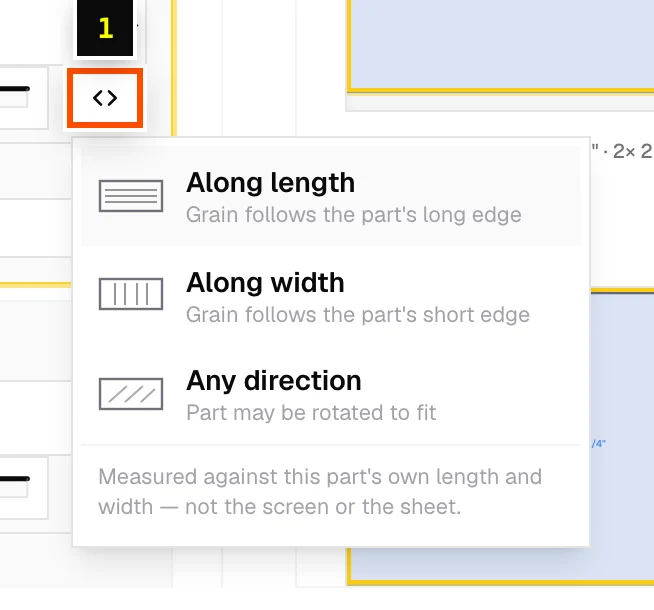
Set grain for every panel at once
Use Grain for all panels above the parts table to set one direction for the whole list, then change the exceptions. You can also bulk-select rows and use Grain → Set….
Rotate a part in the diagram
With grain direction on, click any panel in a result diagram to rotate it 90°. This updates the part's grain setting and re-runs the layout.
Grain in imported files
A grain or grain direction column in a CSV or Excel file is read automatically. Values like horizontal, length, long mean along length, and vertical, width, cross, short mean along width. Anything unusual is interpreted for you. See Import from CSV or Excel.
Related articles
- Enter and edit partsAdd panels, bulk-edit them, multiply a module with Repeat list, and exclude rows from a run.
- Sheet nesting methodsChoose between Easiest to cut, Least waste, Batch cutting and CNC / router layouts.
- Add stock sheetsTell the sheet optimizer what board you're cutting from: size, thickness, quantity, price and grain.
Didn't find what you need?
Email us and tell us which article you were reading.