Multiple materials and material groups
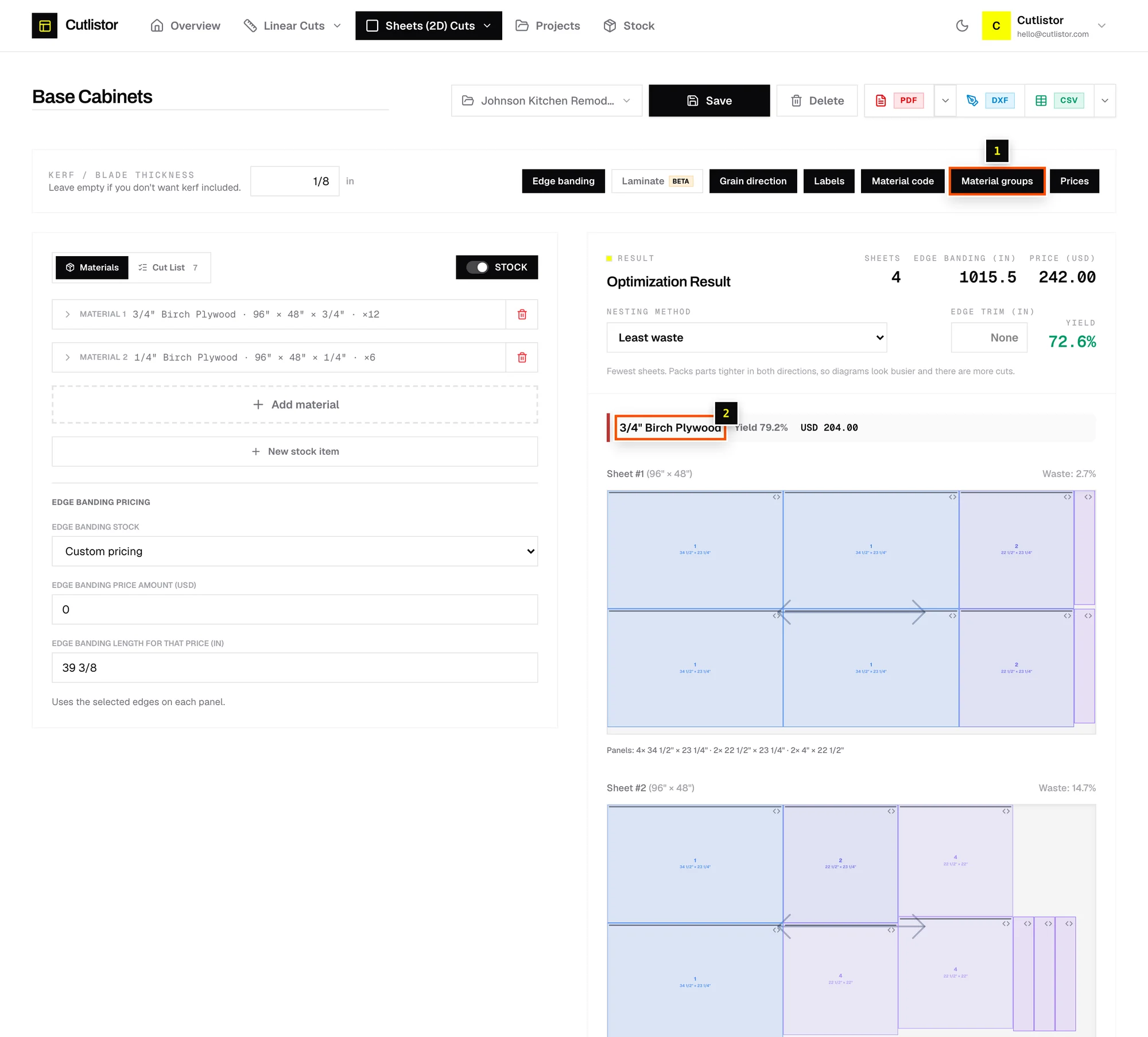
Cut one job from several sheet goods, such as 3/4" plywood carcasses and 1/4" backs, and see each material's results separately.
Available onProBusinessTeam
Updated September 27, 2026Browse all help topics
Add another material
- Step 1: On the Materials tab, click Add material.
- Step 2: Set up the new row like any other sheet: preset or custom size, thickness, quantity and price.
- Step 3: Repeat for each sheet good in the job.
Assign parts with Material groups
- Step 1: Turn on the Material groups chip in the toolbar.
- Step 2: On the Cut List tab, each part now has a material column. Choose the right material for each part.
- Step 3: To set many at once, tick several rows and use the bulk Material action.
In the results, each material gets its own color-coded section with its own sheet count, yield and cost. PDF and table exports keep the same grouping.
Related articles
- Add stock sheetsTell the sheet optimizer what board you're cutting from: size, thickness, quantity, price and grain.
- Read sheet resultsSheet count, yield, waste, cost, per-material sections, stock warnings and cutting diagrams.
- Toolbar chips: Labels, Material code, Material groups and moreWhat each on/off chip in the editor toolbar does.
Didn't find what you need?
Email us and tell us which article you were reading.