Import a 3D model
Turn a SketchUp, Fusion 360, Onshape, Blender, FreeCAD or SolidWorks model into a sheet cut list.
Available onFree toolsProBusinessTeamBeta
Updated September 27, 2026Browse all help topics
Import a model
- Step 1: Export your model as .gltf, .glb or .dae (Collada). See the checklist for each app below.
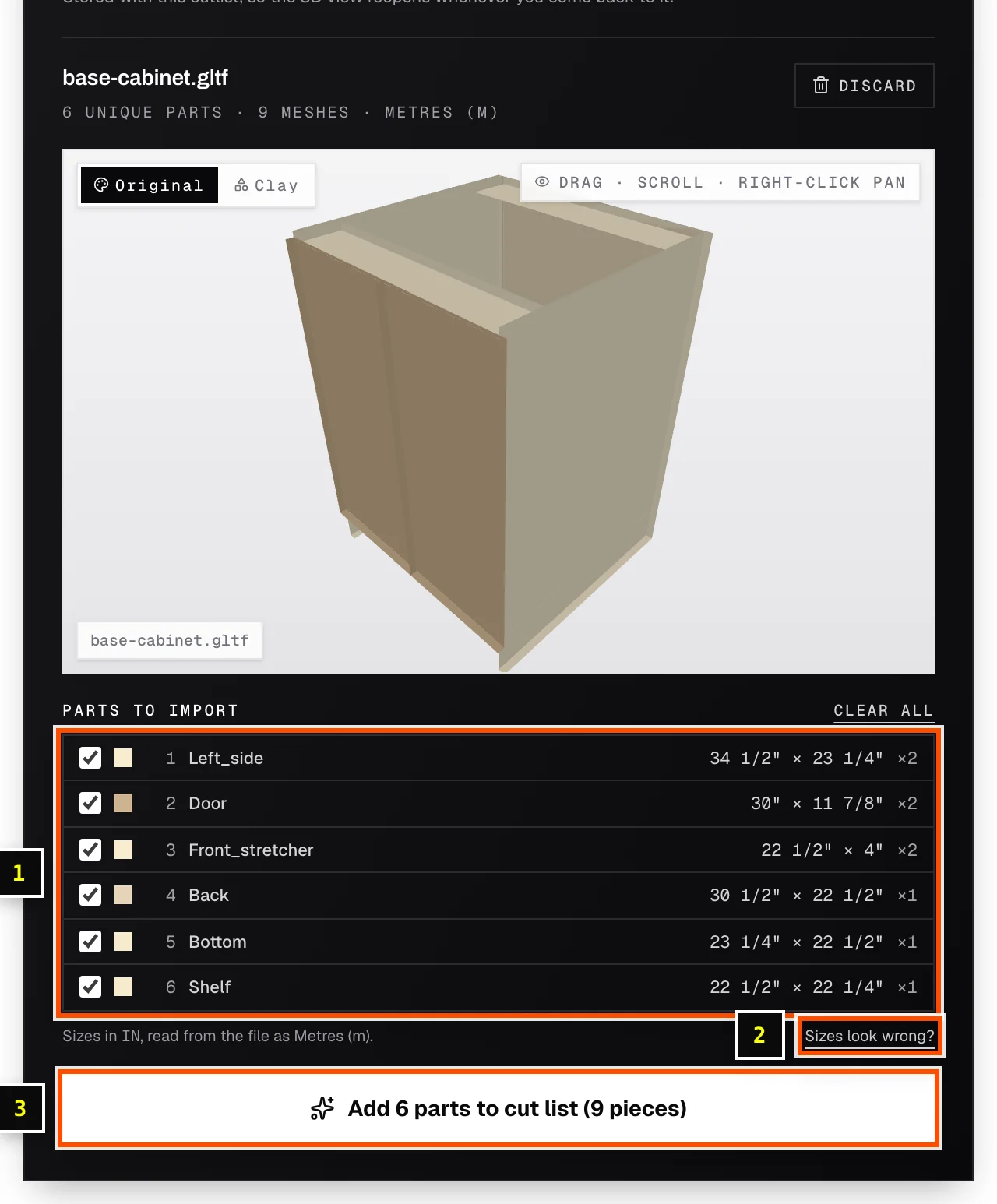
- Step 2: In a sheet cut list, open the Import card, choose the 3D model tab and click Select 3D model.
- Step 3: Review Parts to import. Untick anything that isn't a cut part, such as hardware.
- Step 4: Check Sizes look wrong?. If the sizes are off by a factor like 25.4 or 1000, change Unit used by the file. CAD tools often write meters whatever you modeled in.
- Step 5: Click Add to cut list.
Materials come from colors
Cutlistor groups parts by their appearance color. That's how it tells oak from plywood from MDF, so give each stock type a clearly different color or material in your model.
Export checklist by app
| App | Before you export | Export |
|---|---|---|
| SketchUp | Make each piece its own component. Map each wood or sheet good to its own material. | File → Export → 3D Model → Collada (.dae) |
| Fusion 360 | One body or component per cut-list piece. Give each material its own appearance. | Export glTF from the file menu (or Collada via the Mesh workspace) |
| Onshape | Draw at full scale. Use a different appearance for each stock type. | File → Export → glTF |
| Blender | Keep boards as separate mesh objects. Give each wood a material with a clear base color. | File → Export → glTF 2.0 (.glb or .gltf) |
| FreeCAD | Convert solids to meshes (Mesh workbench) where needed. Set colors per material. | File → Export → glTF |
| SolidWorks | Give each stock type a visibly different appearance. | Save as Collada (.dae), or a glTF exporter add-in |
The 3D view
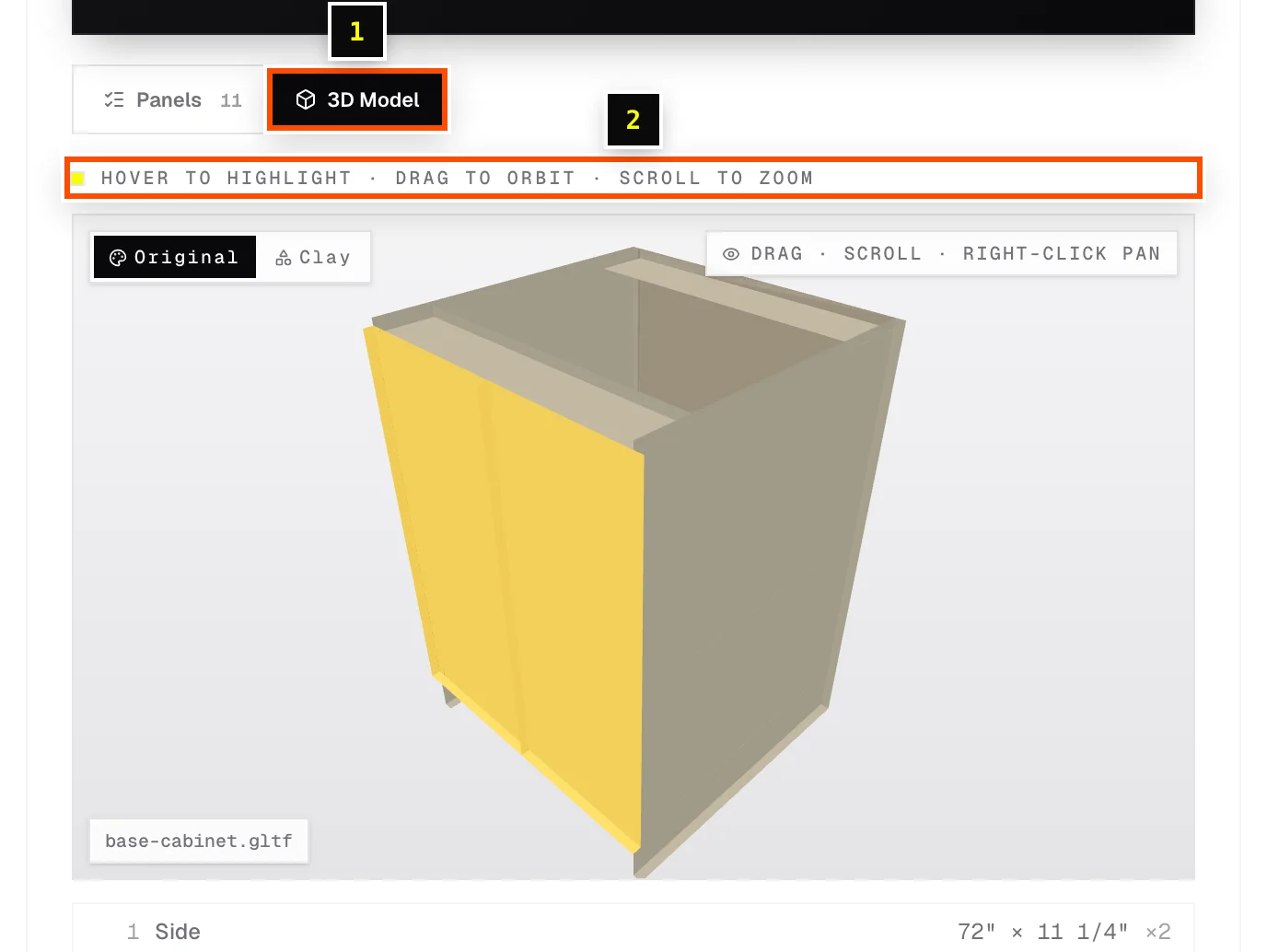
After import, the Cut List tab gets a 3D Model view next to Panels. Hover to highlight a part, drag to orbit and scroll to zoom. Hovering a row in the parts table highlights it in the model.
File sizes, limits and storage
| Plan | Max file size | Imports per month | Saved with the cut list? |
|---|---|---|---|
| Free tools | 10 MB | 3 | No, read in your browser only |
| Pro | 50 MB | 200 | Yes |
| Business / Team | 50 MB | Unlimited | Yes |
Related articles
- AI plan scan: import from a drawing, photo or PDFUpload a plan, sketch or photo and let AI pull out the parts and sizes.
- Enter and edit partsAdd panels, bulk-edit them, multiply a module with Repeat list, and exclude rows from a run.
- Grain directionKeep visible grain running the right way on doors, sides and drawer fronts.
Didn't find what you need?
Email us and tell us which article you were reading.