AI plan scan: import from a drawing, photo or PDF
Upload a plan, sketch or photo and let AI pull out the parts and sizes.
Available onFree toolsProBusinessTeam
Updated September 27, 2026Browse all help topics
Scan a plan
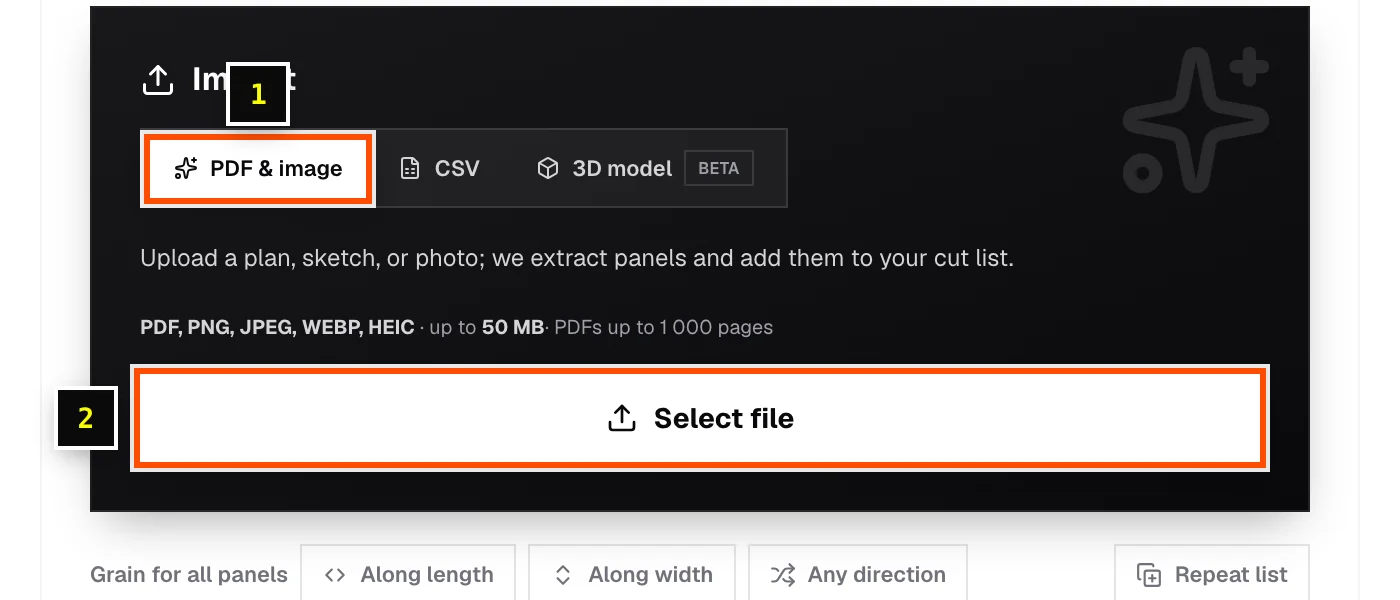
- Step 1: In the Import card, choose the PDF & image tab.
- Step 2: Click Select file and choose a PDF, PNG, JPEG, WEBP or HEIC file, up to 50 MB. PDFs can be up to 1,000 pages.
- Step 3: Wait while it shows Analyzing…. The parts it finds are added to your cut list.
- Step 4: Check every size against your plan before you optimize.
Sheet vs linear
- The sheet editor extracts flat panels (length × width).
- The linear editor reads length-cut pieces only. If a drawing contains both, only the linear pieces are added, and you're told the sheet panels were skipped. Add those in the sheet optimizer.
Tips for better results
- Photograph drawings flat, in good light, with the whole sheet in frame.
- Clear handwriting and labeled dimensions work best.
- If you see No pieces could be identified, try a clearer or higher-resolution image.
Monthly limits
| Plan | AI scans per month |
|---|---|
| Free tools | 3 |
| Pro | 150 |
| Business / Team | Unlimited |
Monthly counts reset on the 1st (UTC). See your count under Usage.
Related articles
- Import from CSV or ExcelLoad a parts list from a spreadsheet: which columns are read, sample files, and tips.
- Import a 3D modelTurn a SketchUp, Fusion 360, Onshape, Blender, FreeCAD or SolidWorks model into a sheet cut list.
- Usage and plan limitsSee how much of your plan you've used: projects, stock quantity, AI imports and 3D uploads.
Didn't find what you need?
Email us and tell us which article you were reading.